
Why Apple Health Medication Reminders Drift on Apple Watch (And the No-Op Fix)

Software Architecture, DevOps & System Design
In this article
- Unpacking the frustrating desynchronization bug between Apple Watch Series 10 and iPhone 14 where interval medication reminders alert on the wrong days or disappear entirely.
- Diagnosing how non-daily interval schedules drift across paired devices due to local daemon cache staleness and independent scheduler tick evaluations.
- Following the exact zero-modification "no-op" duration save that forces HealthKit daemons to recalculate the notification timeline.
- Comparing why deleting medications or adjusting time zones fails to solve the root scheduler cache state machine issue.
- Analyzing the distributed client-side architecture lessons behind paired wearable synchronization and timer recalculation triggers.
The Bottom Line: If your Apple Health medication reminders are alerting days late, popping up early, or completely skipping non-daily intervals on your Apple Watch, you do not need to delete your logs or reset your devices. Navigating to Your Medications > Edit Schedule > Edit Duration and tapping the save checkmark without altering any dates forces an immediate cache invalidation across the local HealthKit daemon, immediately restoring accurate synchronized alerts across both iOS and watchOS.
As someone who spends his working hours designing resilient distributed architectures and navigating Sev-1 outages at scale, I expect computers to be predictable. When a system tells me an event will fire every units of time, I expect an accurate deterministic counter.
Yet, real-world edge cases have a funny way of humbling even the most well-engineered ecosystems.
Over the past few weeks, I ran into a maddening synchronization glitch with Apple Health. I use an iPhone 14 (running iOS 26.6.2) paired with an Apple Watch Series 10 (running watchOS 26.3, build 23S620). Among various health tracking routines, I have a recurring reminder set up for plant sterols—configured to alert me Every 4 Days at 2:00 PM.
Because my Apple Watch sits right on my wrist, it is my primary interface for taking and logging doses. But after a while, something felt distinctly off. Reminders were missing their scheduled days, firing unexpectedly early, or lagging by several days. When I finally sat down to inspect my logged history, the proof was right there on the calendar.
Anatomy of the Drift: What Happened to "Every 4 Days"?
Looking at my 28-day highlights view in the Health app revealed a bizarre record of doses taken:
| Date Logged | Interval from Previous Log | Expected Interval | Schedule Status |
|---|---|---|---|
| Sep 7 (Mon) | Base cycle | 4 Days | Baseline on track |
| Sep 15 (Tue) | 8 Days | 4 Days | Skipped Sep 11 cycle completely |
| Sep 22 (Tue) | 7 Days | 4 Days | Alerted 3 days late (missed Sep 19) |
| Sep 26 (Sat) | 4 Days | 4 Days | On track post-workaround |
Notice the chaos: an 8-day gap between September 7 and September 15 (a full missed cycle), followed by a 7-day gap between September 15 and September 22—which isn't even a multiple of four! The Apple Watch and iPhone had completely desynchronized: the watch would fail to fire on the scheduled date, or pop up an alert days out of phase, while the iPhone silently held a contradictory schedule state.
A quick search confirmed I wasn't alone. In an active Apple Support Community thread titled "Health App Incorrect Medication Schedule", scores of users reported this identical anomaly with non-daily intervals ("Every Few Days", "Every Other Day", or custom day patterns).
The community suggestions were all over the map:
- "Delete the medication completely and recreate it from scratch." (Painful, because you lose your historical adherence analytics).
- "Toggle Time Zone Change under Medications > Options." (Ineffective if you haven't crossed time zones).
- "Toggle Time Sensitive notifications and Focus filters." (Treats notification delivery symptoms, not the underlying schedule calculation).
- "Hard reboot both your iPhone and Watch." (Reloads existing persisted state without invalidating corrupted schedule intervals).
None of these sounded like clean engineering solutions. I didn't want to nuke my historical data just because a scheduler lost track of time. So I went looking for a way to force the system to reconcile its state without modifying a single data point.
How to Force Apple Health to Recalculate Its Schedule (The No-Op Edit)
The fix that immediately resolved the issue for me requires zero data loss and takes less than thirty seconds. We are going to perform what software engineers call a "no-op" mutation—touching an entity's configuration and saving it so the system's reactive lifecycle triggers a full cache recalculation.
Here is the exact step-by-step procedure:
| Step & Instructions | Screenshot |
|---|---|
| Step 1: Check Your Schedule & Drift Open the Health app on your iPhone. Tap Browse > Medications, then select your problematic medication (in my case, Sterols). Scroll down past Schedule to the Highlights section. You will likely see irregular gaps in the 28-day logging calendar where reminders drifted or failed to prompt. | 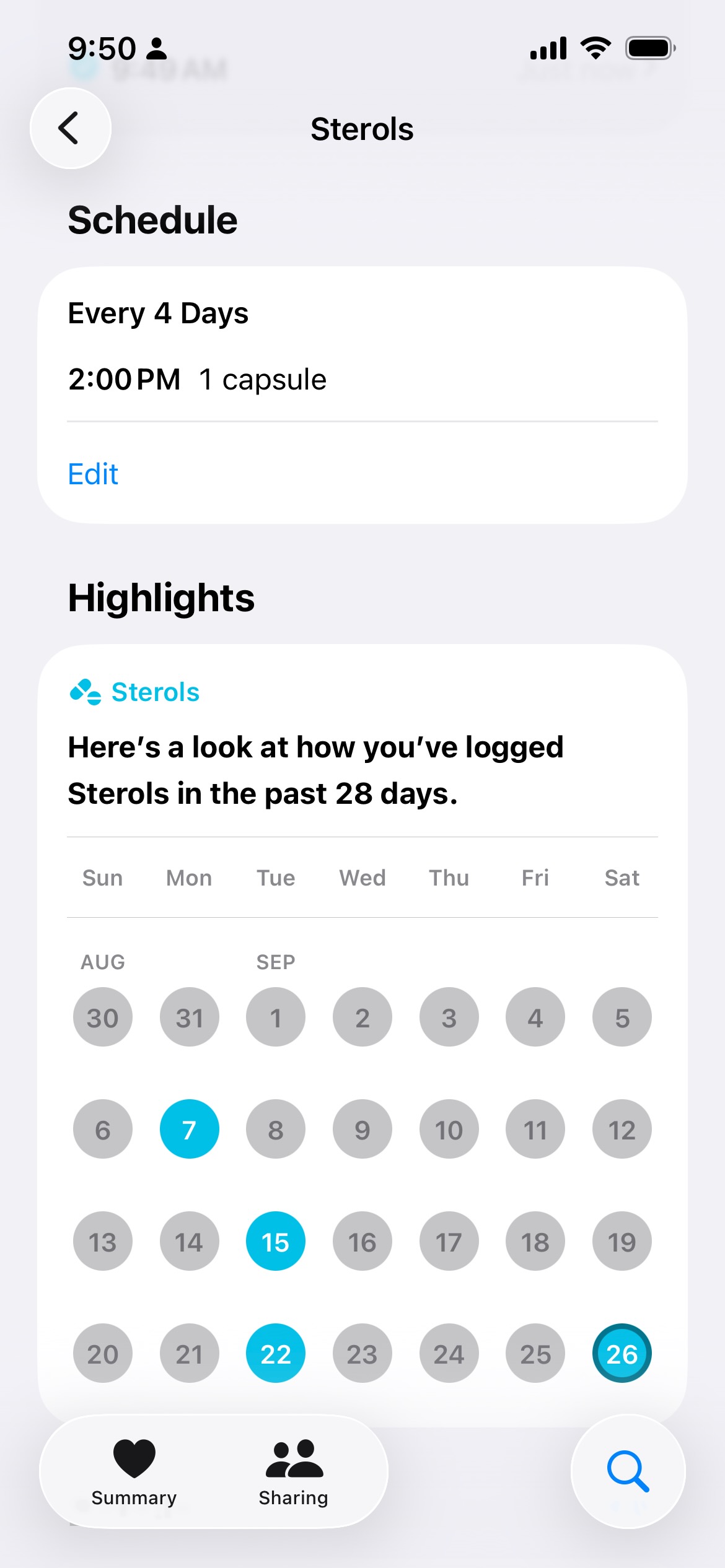 |
| Step 2: Enter Edit Schedule In the Schedule card right above Highlights, tap Edit. You will see the interval settings ("Every Few Days - Every 4 Days") and the dose timing. Scroll down to the bottom of this screen to locate the Duration block showing your Start Date and End Date. Tap Edit inside the Duration block. | 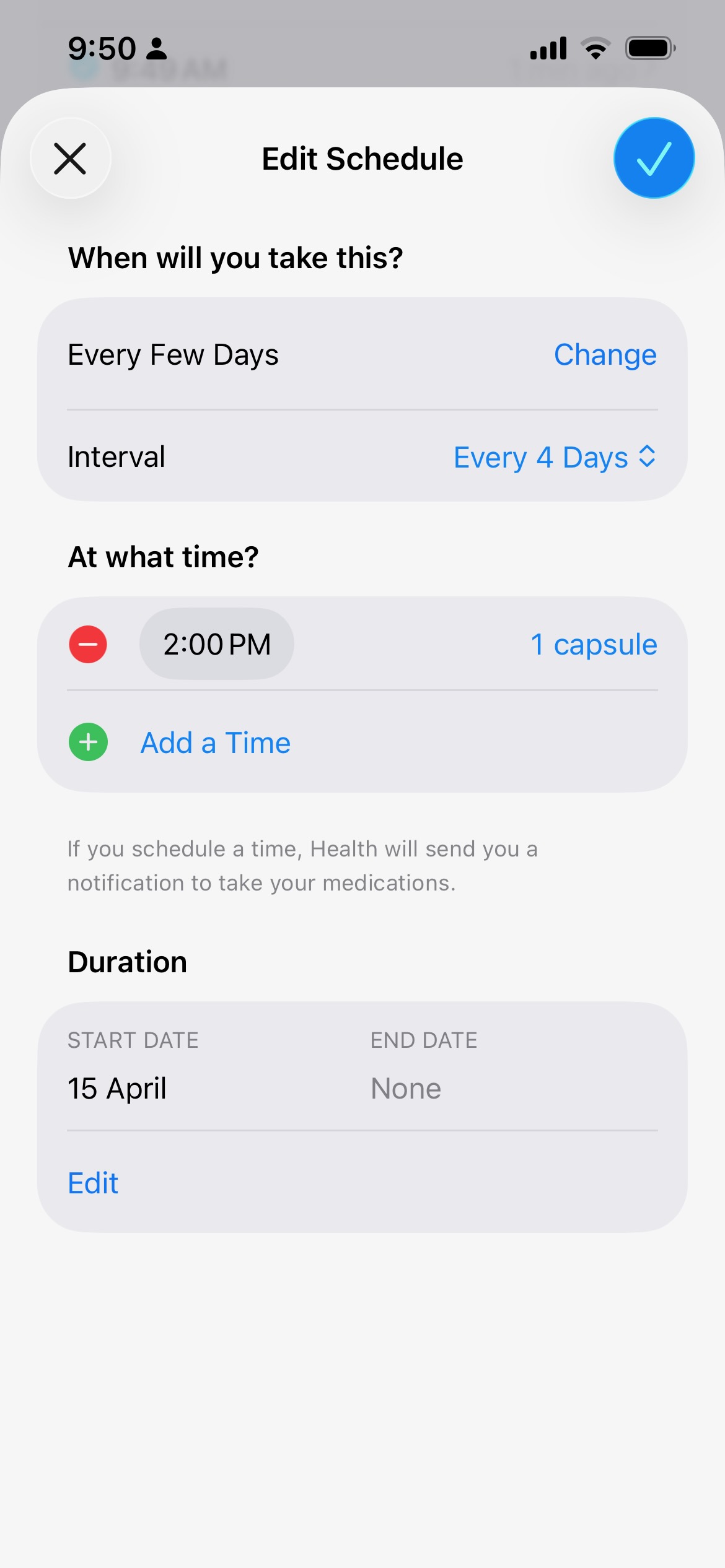 |
| Step 3: Save Without Modifying Any Dates You are now on the Edit Duration modal showing your original Start Date (e.g., 15 Apr 2026) and End Date (None). Do not change either date. Simply tap the blue checkmark (✓) in the top-right corner to save. Tap the checkmark once more on the Edit Schedule screen to commit. | 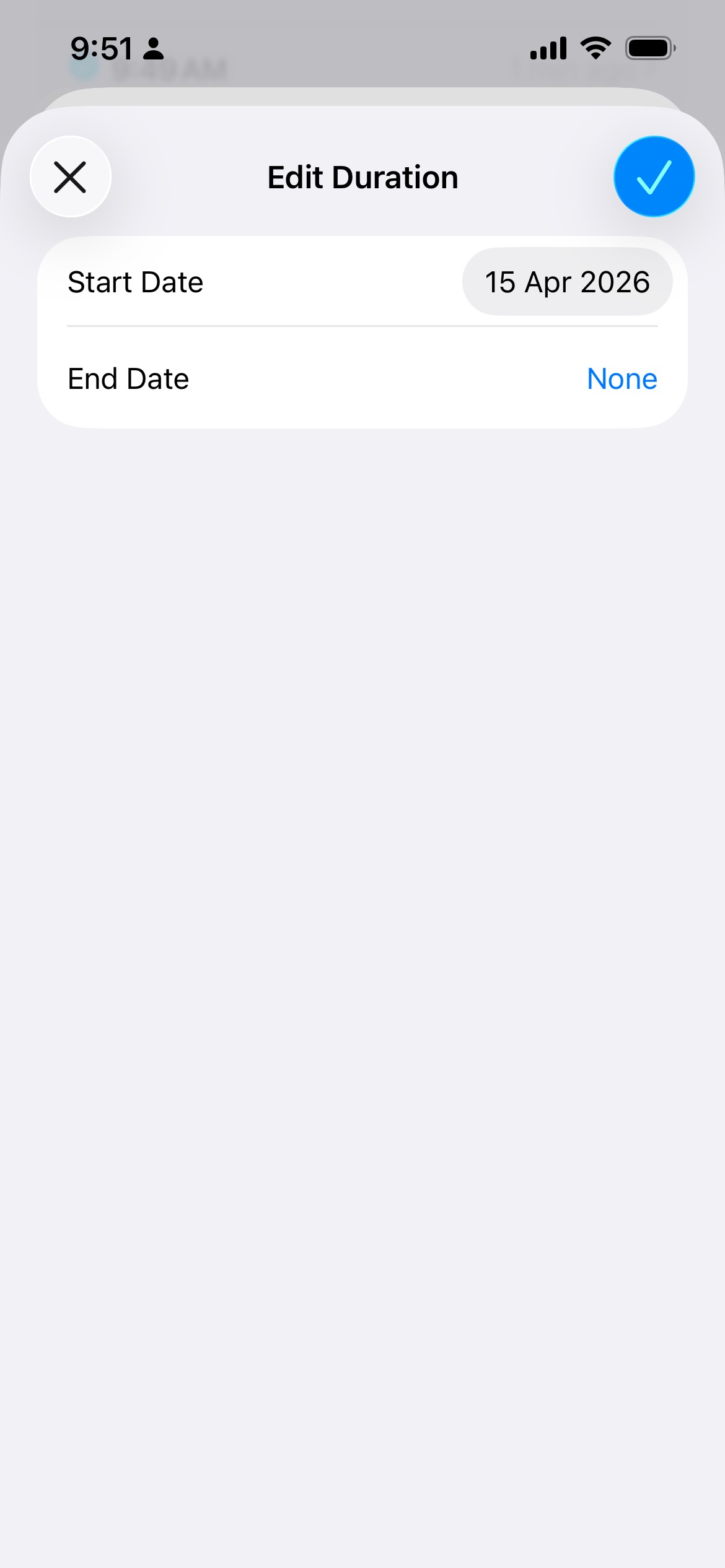 |
That's it. Since applying this no-op save, my schedule instantly snapped back into rhythm. As seen in the calendar highlights, the subsequent dose fired cleanly on September 26—exactly four days after September 22—and alerts have delivered reliably to my wrist ever since.
Why Do Apple Health Medication Schedules Desynchronize Between iPhone and Watch?
To understand why this workaround succeeds while rebooting fails, we have to look at the distributed client architecture governing iOS and watchOS.
Unlike a standard daily alarm that fires at a fixed wall-clock time (e.g., "every morning at 08:00 AM"), an interval-based reminder is mathematically relative:
In a paired device setup, the scheduling responsibility does not live in a single centralized process:
- The Primary Store (
healthdon iOS): Holds the canonical HealthKit CoreData store, managing medication entities, schedules, and historical dose logs. - The Companion Bridge (
WatchConnectivity/ IDS): Replicates updated medication metadata across Bluetooth and Wi-Fi to the paired Apple Watch. - The Local Wearable Scheduler (
nanohealthdon watchOS): Apple Watch cannot wait for an active wireless ping from the iPhone to alert you—it must operate autonomously even when disconnected. Therefore, watchOS arms its own localUNCalendarNotificationTriggerqueue based on the last synchronized schedule state.
What Causes the State Drift?
In distributed systems, two hard problems reign supreme: cache invalidation and synchronization across asynchronous workers.
When you log a dose from your Apple Watch, that event is queued and synced back to your iPhone. However, watchOS and iOS background tasks are heavily power-constrained. If the background daemon on one device fails to calculate the subsequent epoch before low-power sleep suspends its thread, or if an asynchronous dose confirmation arrives out of order, the scheduled timer queue falls out of phase with the actual interval counter.
Because the underlying schedule entity in CoreData hasn't changed its properties, the system assumes the existing cached timeline is valid. Re-powering your iPhone simply re-reads that same un-invalidated timeline from disk.
Why Does the "No-Op" Duration Save Resolve the Bug?
Why does tapping save on the Duration screen fix what rebooting couldn't?
When you tap the checkmark in the Edit Duration view, HealthKit executes an internal save action on the HKMedicationSchedule record. Even though the startDate and endDate values match their existing records bit-for-bit, CoreData fires an explicit NSManagedObjectContextDidSaveNotification event.
This event triggers the internal schedule coordinator:
- Flushes the Stale Queue: It completely purges pending
UNNotificationRequestitems registered with the system notification daemon. - Re-evaluates the Interval Formula: It re-reads the immutable
startDate(15 April) and re-projects all future interval ticks () relative to the current wall-clock date. - Forces Companion Synchronization: It packages a fresh synchronization packet across the
WatchConnectivityidentity bridge, commanding the paired Apple Watch'snanohealthdto dump its stale triggers and register the newly calculated schedule.
In short, you don't need new values to fix a corrupted state machine—you just need to trigger the invalidation lifecycle.
Key Takeaways & Author's Perspective
- Don't nuke your logs to fix a glitch: Wiping and recreating your medication profile erases valuable longitudinal health data. Try a non-destructive cache invalidation before resorting to nuclear options.
- The power of the "No-Op" mutation: In mobile and distributed applications alike, touching a configuration record without changing values is one of the most reliable ways to force background daemons to recalculate derived state.
- Wearable sync edge cases: Paired architectures (iPhone + Apple Watch) require defensive idempotent reconcilers. If you develop for mobile platforms, ensure your background scheduling daemons periodically reconcile their next firing timestamp against the canonical epoch—especially for relative non-daily intervals.
- Hoping for an Apple HealthKit patch: While this workaround takes seconds, users shouldn't have to manually kick their schedule daemons to receive life-critical medication reminders on time. Here's hoping Apple addresses interval cache drift in upcoming iOS and watchOS updates.
If you find yourself scratching your head over app behaviors, background sync, or mobile performance quirks, explore our diagnostic deep-dives on inspecting background app behaviors on mobile and architecting resilient client workflows.

Sandeep Kumar
Founder & Software Architect | Author of “The Operational State Control Plane”
Electronics engineer, software architect, and author of The Operational State Control Plane. Specializing in system design, distributed resilience, and building scalable tech solutions with real-world engineering insights.