
How to Join a WhatsApp Group with QR Code on Android (and How to Create One)

Software Architecture, DevOps & System Design
In this article
- How Android users can seamlessly join any WhatsApp community or team group without manually exchanging phone numbers.
- Step-by-step instructions for scanning physical QR codes and extracting invites from gallery screenshots using native tools.
- Troubleshooting strategies for revoked links, the 1,024 member cap, admin approval queues, and Android browser redirects.
- Walkthrough for group admins to generate printable QR codes and immediately invalidate compromised invite links.
- Architectural breakdown of dynamic deep links, OS intent resolution, and cryptographic token verification under the hood.
The Bottom Line: Joining a WhatsApp group on Android takes seconds: either scan the code directly using WhatsApp's built-in scanner (Settings > QR icon > Scan code) or let your phone camera resolve the deep link. If you received the QR code as a screenshot, you do not need a second phone—simply tap the gallery picker icon inside WhatsApp's scanner or use Google Lens to join immediately.
A few years ago, while organizing a local tech community meetup, I ran headfirst into an onboarding bottleneck. We had over two hundred developers attending across multiple tracks, and we wanted a quick, frictionless channel for real-time announcements, speaker Q&A, and lunch coordination.
The initial plan—collecting everyone's phone numbers at registration and having organizers manually save contacts and add them to a WhatsApp group—fell apart within twenty minutes. It was agonizingly slow, prone to typos, and an administrative nightmare.
Switching to a printed WhatsApp group QR code pasted at the registration desk instantly solved the onboarding friction. Attendees pulled out their Android phones, pointed their cameras, and joined the room in under three seconds.
However, watching dozens of people scan that code revealed an entirely new set of practical edge cases. Some attendees could not scan screenshots they received over chat without borrowing a friend's phone. Others found their default browser opening a blank page instead of the WhatsApp app, or got locked out when our group hit member caps.
Whether you are an attendee trying to join a group from a flyer or a screenshot, or an admin managing public access, here is the complete, field-tested guide to joining and managing WhatsApp groups with QR codes on Android.
How to Join a WhatsApp Group with a QR Code on Android
On Android, you do not need third-party barcode scanner apps or shady utility tools from the Play Store. You have two primary, native methods: WhatsApp's dedicated in-app scanner and the standard Android camera app via Google Lens.
Method 1: Using WhatsApp's Built-in QR Scanner
WhatsApp includes a dedicated QR scanner directly inside the Android client. This scanner connects straight into the app's internal deep-link handler, bypassing your mobile browser entirely.
- Open WhatsApp on your Android device.
- Tap the three vertical dots in the top-right corner and select Settings.
- Next to your profile name and avatar at the top of the screen, tap the small QR code icon.
- WhatsApp displays your personal profile QR code. At the top of this screen, tap the Scan code tab.
- Align your camera viewfinder over the physical or digital WhatsApp group QR code.
- Once recognized, a confirmation modal slides up showing the group name, group icon, and total active participants. Tap Join Group (or Request to Join if admin moderation is turned on).
WhatsApp Home -> ⋮ (Menu) -> Settings -> [QR Icon] -> "Scan code" tab -> Align Viewfinder -> "Join Group"
Method 2: Scanning a Screenshot from Your Gallery (The "Single-Screen" Solution)
The most common frustration I see Android users face is the "single-screen dilemma": someone sends you an invite QR code via an email, a PDF flyer, or a private WhatsApp chat. Because the QR code is displayed on your own phone screen, you cannot point your physical camera at it.
You do not need a second device or a physical printout. WhatsApp's scanner includes a built-in gallery image picker:
- Take a screenshot of the QR code on your Android device (usually Power + Volume Down).
- Open WhatsApp and navigate to the scanner: Settings > QR code icon > Scan code.
- In the bottom-left corner of the camera viewfinder, tap the Gallery icon (represented by a square photo thumbnail).
- Select the screenshot from your photo gallery or recent downloads.
- WhatsApp's image processing engine automatically parses the 2D matrix barcode from the photo, extracts the invite token, and presents the Join Group prompt.
Alternatively, if your device runs modern Android (Android 12 and newer), you can use Circle to Search or Google Lens:
- While viewing the screenshot or image in your Photos app, tap the Lens button.
- Tap the highlighted QR code, and Google Lens will present a direct
chat.whatsapp.compill that opens WhatsApp automatically.
Method 3: Using the Default Android Camera App
Most modern Android smartphone cameras (Google Pixel, Samsung Galaxy One UI, Xiaomi HyperOS, OnePlus OxygenOS, and Motorola) have barcode scanning enabled out of the box.
- Open your default Camera app.
- Point your camera at the WhatsApp group QR code. Hold the phone steady for half a second.
- A floating link chip or yellow pill reading
chat.whatsapp.comwill pop up directly above or below the QR code. - Tap the link chip. Android dispatches an OS intent that launches WhatsApp directly to the group preview screen.
- Tap Join Group.
How Android Deep Links and QR Verification Work
To understand why group joins succeed—or unexpectedly fail—it helps to look at the system architecture behind the scan. A WhatsApp group QR code is not a proprietary binary format; it is a standardized 2D matrix encoding an HTTPS deep link containing an alphanumeric invite hash:
https://chat.whatsapp.com/L8k29xAbCdEfGhIjKlMnOp
When you scan that code on an Android device, your operating system and the WhatsApp backend execute the following verification pipeline:
Contextual Troubleshooting & Common Join Errors
When scanning a WhatsApp group QR code fails, it is rarely a problem with the camera sensor itself. Instead, it is almost always driven by invite token revocation, group capacity caps, administrative moderation, or Android OS intent misconfigurations.
Why does a WhatsApp QR code say "This invite link was revoked"?
WhatsApp group QR codes do not expire on an automatic timer. Unlike ephemeral one-time passwords or expiring session tokens, an invite QR code remains valid indefinitely—unless an admin manually resets it or deletes the group.
If you encounter the error message "This invite link was revoked", the group administrator went to the invite settings and selected Reset link. Doing this immediately invalidates the cryptographic invite hash stored on WhatsApp's servers.
When an admin resets a link, any previously printed posters, shared screenshot images, or digital QR codes pointing to that old token become permanently dead. To join, you must contact the admin and request a fresh, regenerated QR code.
Why does scanning a WhatsApp QR code say "Request to Join" instead of joining immediately?
If you scan a code and see a yellow or green button labeled Request to Join instead of the customary "Join Group", the administrator has enabled WhatsApp's Approve new members moderation queue.
In this mode:
- Tapping Request to Join submits your account profile and phone number to a pending queue.
- You are not added to the participant roster immediately.
- A group admin must open the group info screen and explicitly approve your admission before you can read or post messages.
- If an admin rejects your request, you cannot bypass the restriction by scanning the same QR code again.
Why does the QR code open a blank web browser page instead of the WhatsApp app?
When using your phone's default camera app or a generic scanner, tapping the decoded URL might launch Google Chrome, Firefox, or Samsung Internet into an infinite redirect loop or a blank white screen.
This happens because of an Android OS Intent handling misconfiguration. Android uses Android App Links to associate the domain chat.whatsapp.com directly with the installed WhatsApp package. If that association is cleared or overridden, your browser tries to render the deep link directly rather than passing the intent to WhatsApp.
To fix this on Android:
- Open your phone's Settings menu.
- Navigate to Apps (or App Management) and select WhatsApp.
- If you frequently jump between multiple open apps while testing configurations, managing your running services via recent used apps makes troubleshooting easier.
- Tap Open by default (or Set as default).
- Ensure that Open supported links is set to Allow or Open in this app.
- Tap Supported web addresses and verify that
chat.whatsapp.comis checked.
Once enabled, scanning the QR code via your camera app will bypass the browser entirely and launch the native WhatsApp client.
What is the maximum member limit for a WhatsApp group?
WhatsApp enforces a hard limit of 1,024 participants per standard group chat.
Even if you possess a valid, non-revoked QR code, the WhatsApp backend will abort the join flow and display "Group is full" if the active participant counter has reached 1,024. The only way to join a full group is for existing participants to leave or for an administrator to prune inactive accounts.
How Group Admins Create, Share, and Revoke Group QR Codes
If you are managing a team, an event, or an open-source community, generating a group QR code allows you to distribute an invite link without manually adding individual phone numbers to your address book.
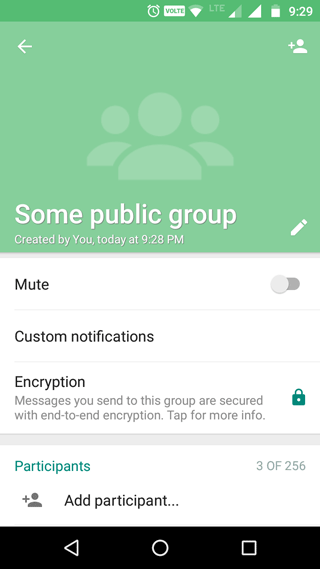
Step 1: Access Group Participants
Open your WhatsApp group on Android. Tap the group name banner across the top of the screen to open the Group info panel. Scroll down past the media gallery and tap Add participant.
Step 2: Open the Invite via Link Screen
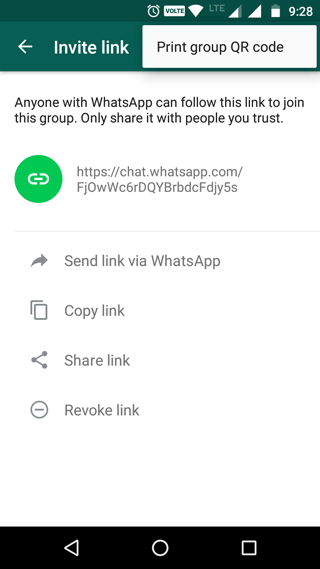
At the very top of your contacts list, tap Invite to group via link.
This view provides your unique invite URL (https://chat.whatsapp.com/...), alongside options to send the link over WhatsApp, copy the link, or share it via external Android apps.
Step 3: View and Print the Group QR Code
Tap the three dots in the top-right corner of this screen (or tap the dedicated QR code option in modern versions) and select Print group QR code.
| Step Navigation | Scannable Group Asset |
|---|---|
 | 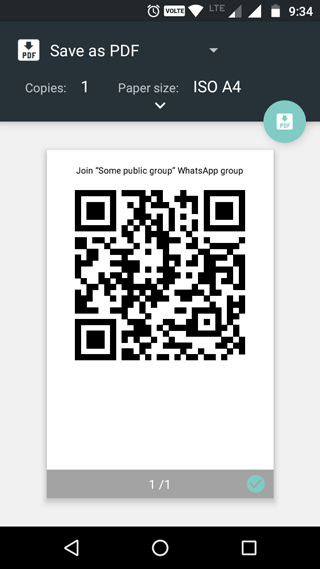 |
From this screen, you can:
- Present the QR code on your phone screen for immediate live scanning by nearby attendees.
- Tap the Share icon to save it as an image, send it via email, or distribute it to Slack/Discord channels.
- Tap Print to send the image directly to a connected Wi-Fi printer for physical display at event check-in desks.
If you want to brand your invite flyers with high-contrast logos or custom vector framing, you can copy the raw invite link and follow our guide on designing a QR code with custom image to produce professional marketing assets.
How to Invalidate a Compromised QR Code ("Reset Link")
Public QR codes are susceptible to bot scraping, spam raids, and unauthorized sharing across social media. If your group suddenly receives unwanted participants, do not delete the group. You can revoke the QR code instantly:
- Open Group info > Invite to group via link.
- Scroll to the bottom and tap Reset link.
- Confirm by tapping Reset Link in the dialog prompt.
WhatsApp immediately deletes the old invite hash on its servers and generates a brand-new token. The previous QR code becomes permanently obsolete, halting unwanted joins immediately.
Engineering Takeaways: The Architecture of Dynamic Deep Links
From a systems engineering perspective, WhatsApp's group QR code implementation illustrates several clean design patterns for access delegation:
- Decoupled Capability Tokens: A WhatsApp group QR code is an opaque capability token. The QR matrix contains zero state about the group's title, participant list, or encryption keys. It simply encodes a dynamic deep link (
chat.whatsapp.com/{token}). This ensures that even high-density QR codes remain visually simple (Version 2 or Version 3 QR codes) and scan rapidly across low-end camera sensors. - Server-Side Token Resolution: Because the QR code points to an ephemeral URI rather than a static ID, the authorization lifecycle is fully decoupled from the client. When an admin selects Reset link, the backend updates a single key-value pointer in the group's metadata database. There is zero risk of client-side cache poisoning, because the join screen forces a round-trip network lookup before presenting the "Join Group" action.
- Intent Dispatch vs Web Fallbacks: Android's handling of
chat.whatsapp.comdemonstrates the elegance of Universal App Links. If WhatsApp is installed, Android intercepts the HTTP request and passes the payload directly to the app's internal routing stack. If scanned by a device without WhatsApp installed, the URI resolves gracefully to a web landing page instructing the user to download the application from the Google Play Store. - Rate-Limiting & Anti-Spam Defenses: Public capability URLs naturally attract automated spam bots. WhatsApp mitigates mass-join attacks by enforcing server-side token redemption velocity limits, fingerprinting joining clients, and providing group administrators with atomic toggles like Approve new members to introduce human-in-the-loop verification.
Author's Key Takeaways
- Never rely on second phones for screenshot invites: When someone sends you a QR code image, open WhatsApp's built-in scanner (Settings > QR icon > Scan code) and tap the Gallery icon at the bottom-left to parse it directly from storage.
- QR codes do not expire on a timer: If an invite code fails with "revoked", the group admin manually rotated the invite hash using the Reset link action.
- Resolve browser redirect bugs in Android Settings: If scanning a QR code opens a blank web page instead of WhatsApp, verify that
chat.whatsapp.comis configured under Apps > WhatsApp > Open by default. - Always pair public QR codes with Admin Approval: If you print QR codes for physical conferences or public websites, enable Approve new members in Group Settings to prevent malicious automated spam accounts from invading your chat.

Sandeep Kumar
Founder & Software Architect | Author of “The Operational State Control Plane”
Electronics engineer, software architect, and author of The Operational State Control Plane. Specializing in system design, distributed resilience, and building scalable tech solutions with real-world engineering insights.